


RYOEX Account Opening Guide | How to Create Individual, Corporate, and Demo Accounts

 2025-12-17
At RYOEX, you can open three types of accounts to suit your needs: Individual Real Account, Corporate Real Account, Demo Account.
Real accounts allow you to trade with actual funds and are available to both individual and corporate users. Demo accounts require no deposit and let you practice trading with virtual funds, making them ideal for beginners or anyone testing the platform.
Optimized (slightly more polished): A step-by-step guide to opening each type of account.

Opening an Individual Real Account
The process is straightforward—complete the four steps below to open your individual real account quickly and easily.
1. Create a RYOEX Account
2. Complete Your Identity Verification (KYC)
3. Open Your Real Trading Account
4.【Important】: Finish Setting Up Your cTrader ID
1.Create a RYOEX Account
Step 1. Open the Account Signup Page
Official RYOEX Website Click the “Open Real Account” button on the official RYOEX website, or use the button below to go directly to the account signup page.
Step 2. Enter Your Details and Complete Slide Verification
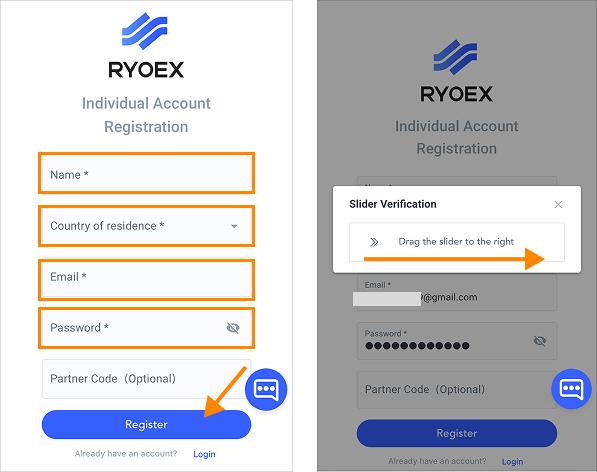
On the registration page, fill in your name, country of residence, email, password, and other required details, then click “Register.”
A slide verification screen will appear. Drag the slider to the right, and a 6-digit verification code will be sent to your registered email.
※ If the email doesn’t arrive, verify that your registered email address is correct and check your spam folder as well.
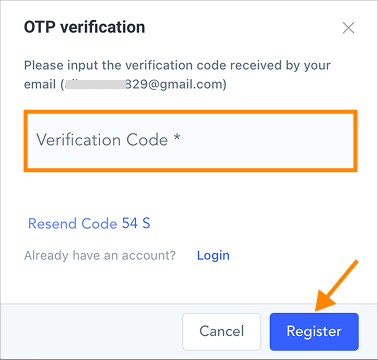
Step 3. Enter the Verification Code to Finish Your Account Setup
Enter the 6-digit code from your email and click “Register” to complete your RYOEX account setup.
You will be automatically redirected to My RYOEX (your member page).
2. Complete Your Personal KYC Verification
To ensure a smooth KYC process, please prepare the following documents in advance.
Identity document (any of the following)
・My Number Card (both sides)
・Passport
・Driver’s License (both sides)
・Residence Permit (both sides)
Proof of address (any of the following)
・My Number Card
・Driver’s License
・Utility Bill (electricity, gas, water, etc.)
・Bank Statement
・Mobile Phone Bill
・Certificate of Residence
※ Make sure to submit an image or PDF that clearly displays your full name, address, and an issue date within the last 3 months, with the entire document visible.
A selfie taken with your ID document
Step 4. Open the ID Document Upload Page
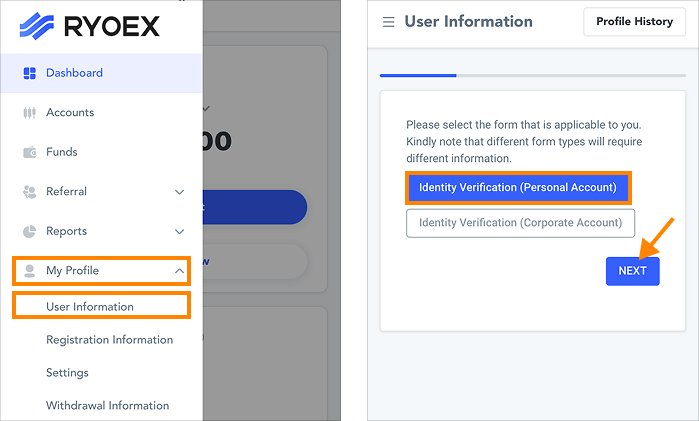
From the My RYOEX dashboard, navigate to Personal Information → Verification Details → Identity Verification (Personal Account) and click Next. You will then be directed to the ID document upload page.
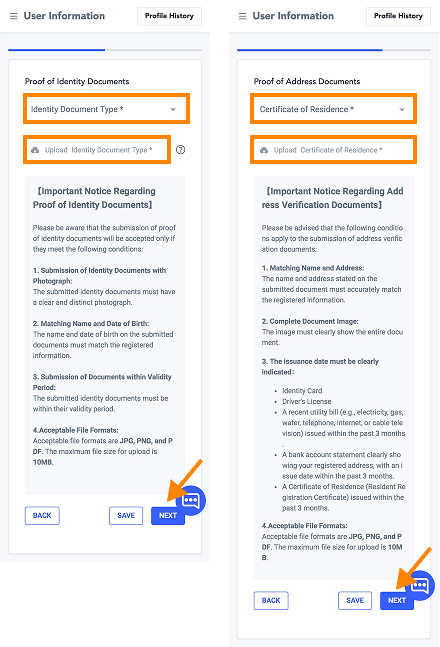
Step 5. Upload Your Identity Documents
Upload the required verification documents in order.
Select the type of ID, click “Upload ID Document” to submit it, then proceed by clicking “Next.”
After that, upload your proof of address and selfie photo using the same steps.
Step 6. Review and Submit Your Uploads
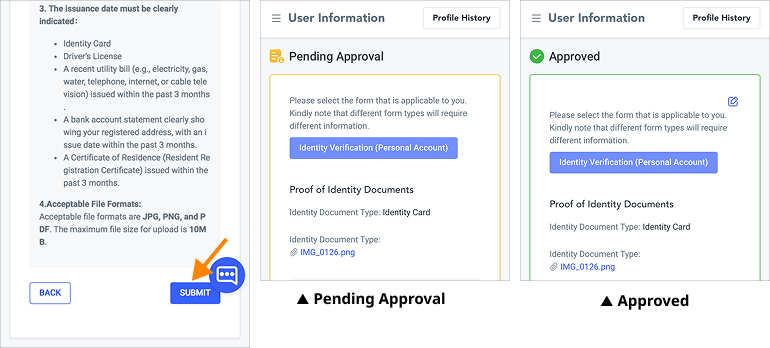
Once the upload is complete, you will be taken to the verification review screen. Review the information, and if everything is correct, click “Confirm” to submit it for approval.
After your documents are approved, your verification status will change from “Pending Approval” to “Verified”, completing the KYC process.
3. Open a Live Trading Account
After completing identity verification, you can open a live trading account.
RYOEX provides a dedicated cTrader environment designed for transparency and seamless usability, ensuring a secure trading experience.
Five account types are available, allowing you to select the one that best matches your trading strategy.
For detailed insights into each account type and their key differences, visit the Account Comparison page.
Step 7. Open the Account Opening Page
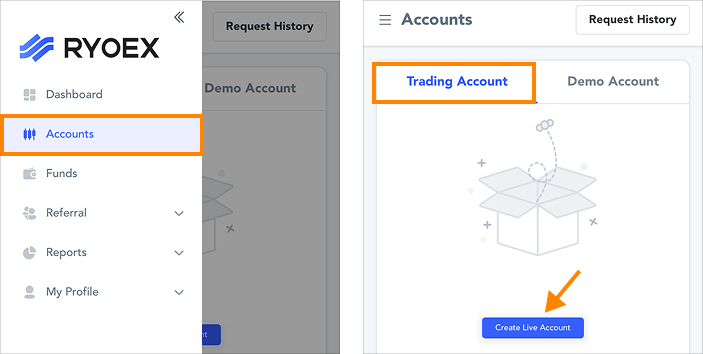
From the My RYOEX menu, select “My Account” and click “Open a Real Account.”
Step 8. Configure Your Account Details
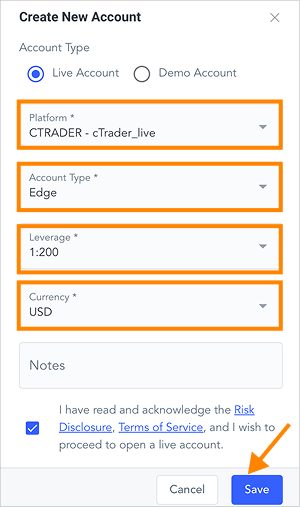
①Select “CTRADER – cTrader_live” as the platform.
②Choose one of the five available account types.
③Select your preferred leverage.
④Set the account currency to USD.
⑤Check the Risk Disclosure and Terms of Use at the bottom of the page.
After completing all fields, click “Save.”
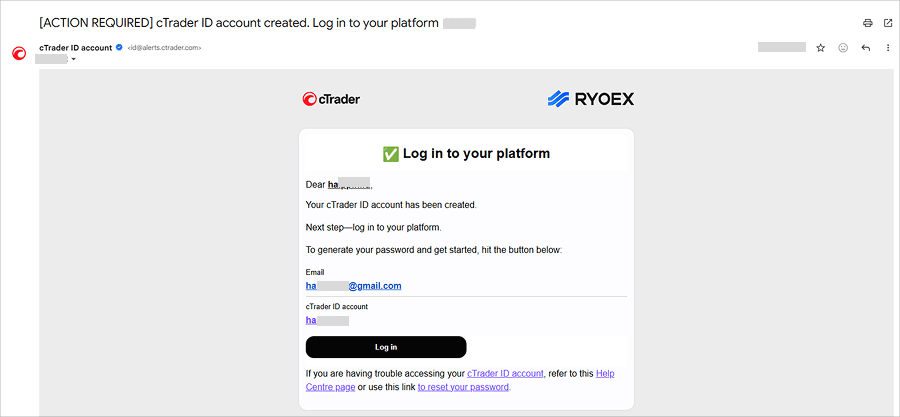
Your real account is now set up. After completion, an email with instructions for configuring your cTrader ID setup guide email will be sent to your registered address.
※ If you don’t receive the email, please check your spam folder as well.
▼cTrader ID Setup Email
4.【Important】Complete Your cTrader ID Setup
If this is your first time opening a cTrader account, you must first set up your cTrader ID.
You cannot trade on cTrader without setting up your cTrader ID.
Once created, you won’t need to set it up again when opening additional accounts. A single cTrader ID allows you to manage all your trading accounts.
Step 9. Open the cTrader ID Setup Page
Click the “Login” button in the cTrader ID setup email to access the password-creation page for your cTrader ID.

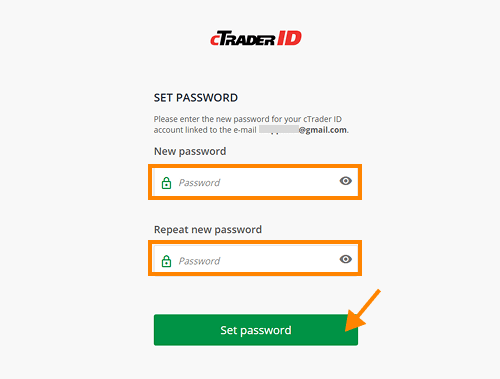
Step 10. Set Your cTrader ID Password
Enter your cTrader ID password and click “Set Password.”
Once completed, you can log in to cTrader using your registered email and newly created password to start trading.
How to Open a Corporate Live Account
RYOEX allows corporate clients to open trading accounts online with ease.
The process is nearly identical to opening an individual account and can be completed in four steps. The only difference is that the KYC procedure is conducted for a corporation.
1. Create a RYOEX account
2. Complete corporate KYC verification
3. Open a live trading account
4. 【Important】: Complete your cTrader ID setup
1. Create Your RYOEX Account
Step 1. Open the Account Registration Page
RYOEX Official Website Click the “Open a Real Account” button on the official RYOEX website, or use the button below to access the account registration page directly.
Step 2. Enter Corporate Information and Complete Slide Verification
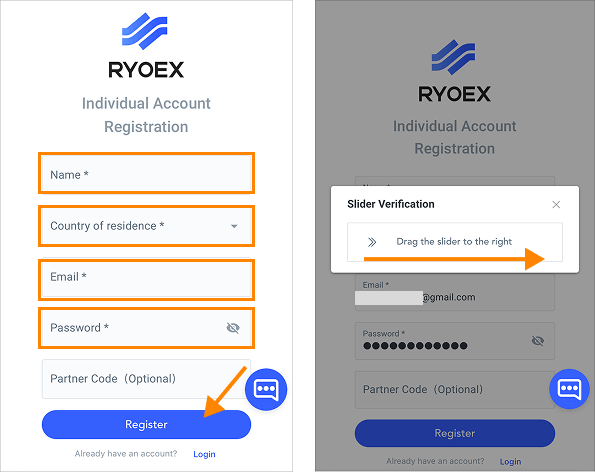
When the registration screen appears, enter your name, country of residence, email address, and password, then click “Register.”
A slide verification screen will then appear. Drag the slider to the right to trigger the delivery of a six-digit verification code to your registered email address.
※ If you do not receive the email, please ensure that the registered email address is correct and check your spam or junk folder.
Step 3. Verify the Code to Complete Account Setup
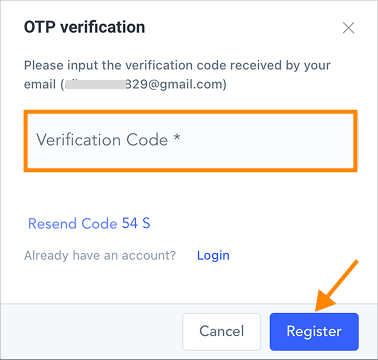
Enter the six-digit verification code sent to your email and click “Register.”
Your RYOEX account will then be successfully created, and you will be automatically redirected to My RYOEX (the client dashboard).
2. Complete Corporate KYC Verification
Please prepare the following documents in advance to ensure a smooth KYC verification process.
Corporate Documentation
(1) Certificate of Registered Matters(Issued within the last 3 months; complete set of all pages required)
(2) Corporate Seal Registration Certificate
Documents for the Company Representative
(1) Identity Document (one of the following)
・My Number Card (front and back)
・Passport
・Driver’s License (front and back)
・Residence Card (front and back)
(2) Proof of Address (one of the following)
・Utility bill (electricity, gas, water, etc.)
・Bank statement
・Mobile phone bill
・Certificate of Residence
※ Please provide a clear image or PDF showing your full name, address, and an issue date within the last three months.
Documents for the Authorized Trading Representative
(1) Proof of Identity (any of the following)
・My Number Card (both sides)
・Passport
・Driver’s License (both sides)
・Residence Permit (both sides)
(2) Proof of Address (any of the following)
・Utility bill (electricity, gas, water, etc.)
・Bank statement
・Mobile phone bill
・Certificate of residence
※ Please provide an image or PDF showing your full name, address, and an issue date within the last three months, with all document details clearly visible.
Step 4. Open the Identity Document Upload Page
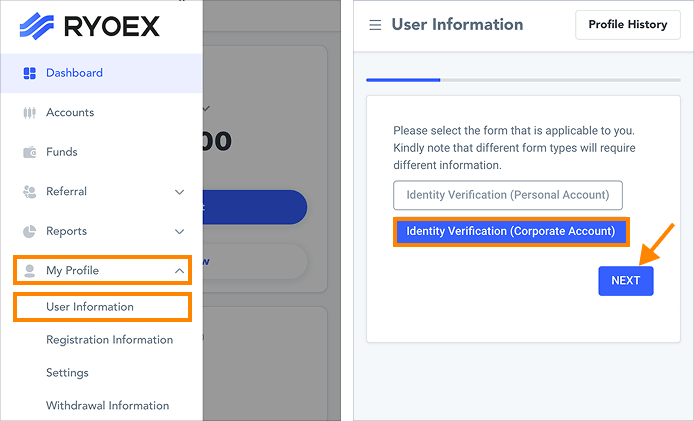
From the My RYOEX menu, go to “Personal Information” → “KYC Information” → “Corporate KYC” → “Next.” This will open the document upload page.
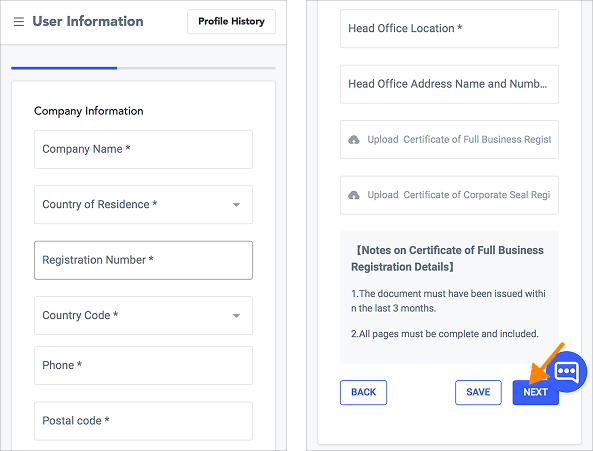
Step 5. Enter Company Information
Enter the required company details, including company name, country of residence, registration number, country code, phone number, postal code, and registered address. Then upload the Certificate of Company Registration and the Corporate Seal Registration Certificate, and click Next to proceed.
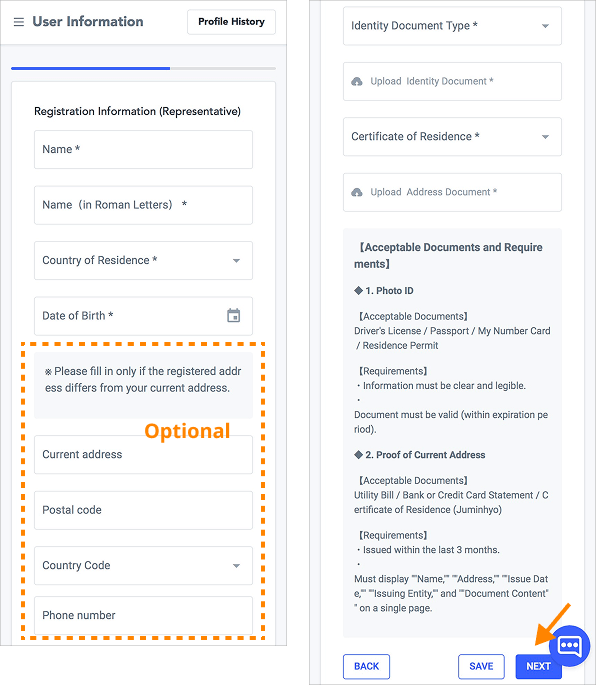
Step 6. Enter Representative Information
Enter the representative’s name, country of residence, date of birth, and other required details.
If the representative’s residential address differs from the company’s registered address, provide the current address, postal code, and phone number as well.
Upload the identification and address verification documents, then click “Next.”
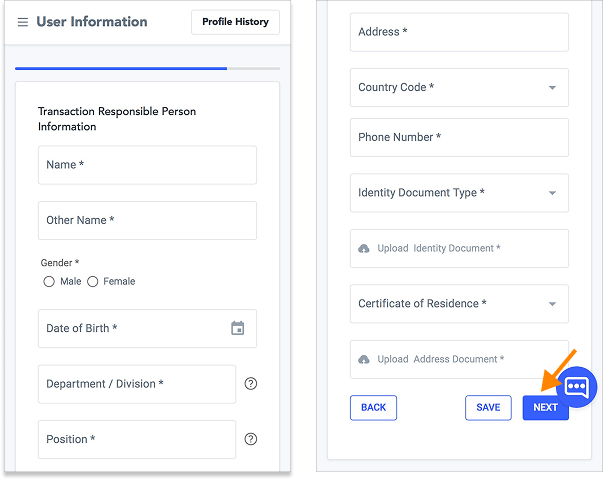
Step 7. Enter Trading Manager Details
Please enter the trading manager’s name, gender, date of birth, department, position, address, and phone number.
Then upload the required identity and address verification documents and click Next to proceed.
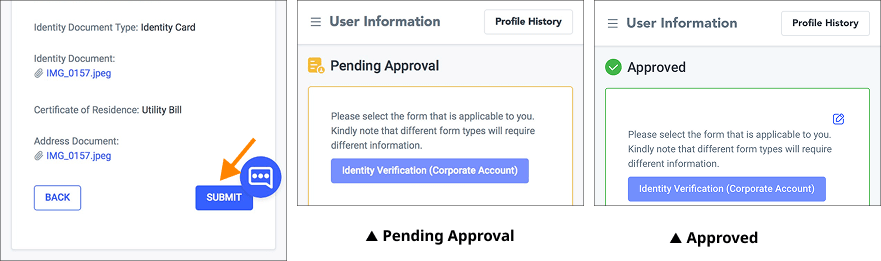
Step 8. Review and Submit
Review the entered information and click “Confirm” if everything is correct.
Once approved, the KYC status will change from “Pending” to “Approved,” completing the verification process.
3. Open a Live Trading Account
Once your identity verification is complete, you can proceed to open a live account.
RYOEX offers secure and transparent trading through cTrader, providing an intuitive platform for all users.
Corporate clients can trade under the same conditions as individual clients.
Five account types are available, allowing you to choose the option that best fits your trading strategy.
For detailed information on each account type and their differences, please refer to the Account Comparison page.
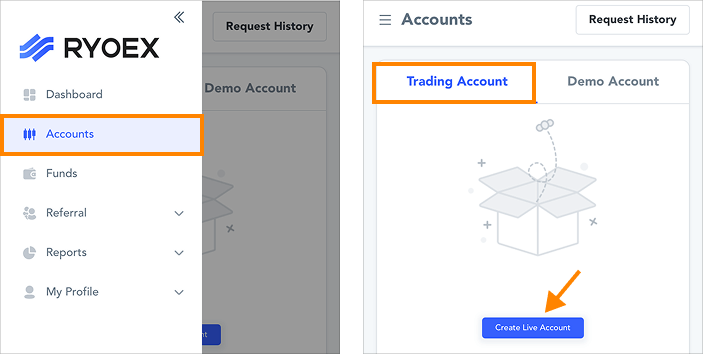
Step 9. Open the Account Setup Page
Click “My Account” → “Open Real Account” from the My RYOEX menu to access the account setup page.
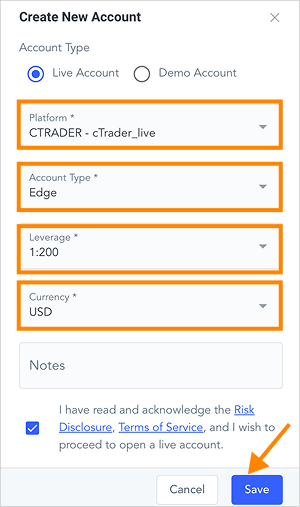
Step 10. Set Account Details
Select “CTRADER – cTrader_live” as your platform.
Choose one of the five account types.
Set your preferred leverage.
Select USD as the account currency.
Check the boxes to accept the Risk Disclosure and Terms & Conditions.
After completing all fields, click Save to finish.
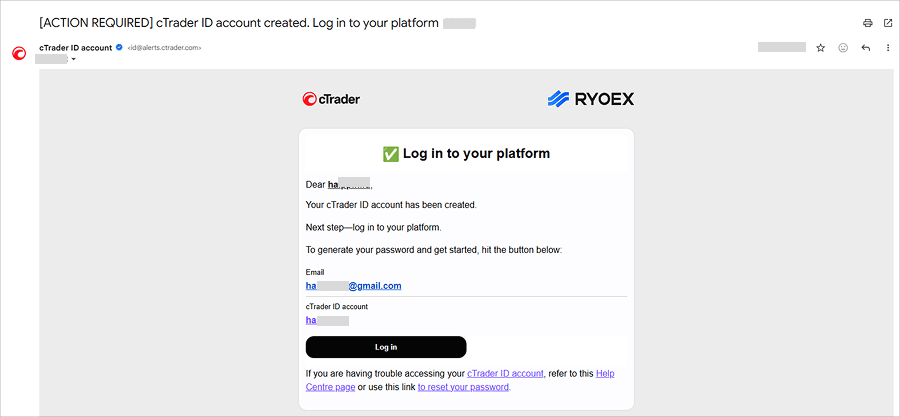
The real account setup is now complete. A cTrader ID setup guidance email will be sent to your registered email address.
※ If you do not receive the email, please check your spam or junk folder.
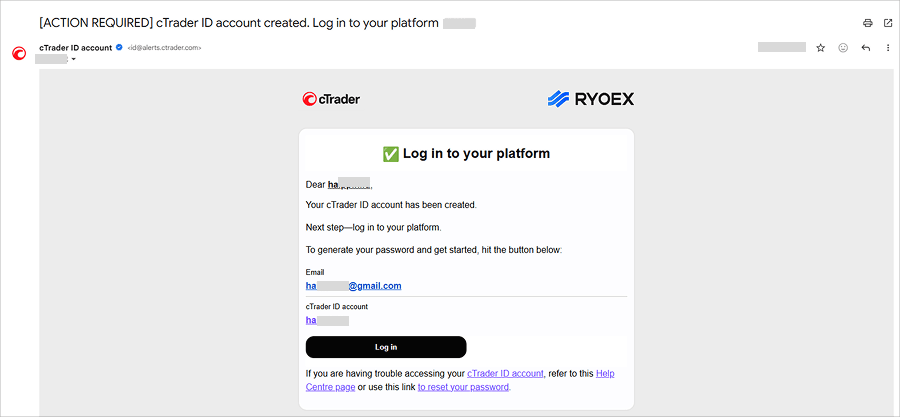
▼ cTrader ID Setup Email
4. 【Important】 Complete Your cTrader ID Setup
If you're opening a cTrader account for the first time, you must set up your cTrader ID before proceeding.
You must set up your cTrader ID before you can trade on cTrader.
Once created, you won’t need to set it up again when opening new accounts. A single cTrader ID allows you to manage all your trading accounts seamlessly.
Step 11. Open the cTrader ID Setup Page
Click the “Login” button in the cTrader ID setup email to proceed to the password-creation page.
Step 12. Set Your cTrader ID Password
Once you enter your cTrader ID password and click “Set Password,” your cTrader ID setup will be complete.
You can then log in to cTrader and start trading using your registered email address and newly created password.

How to Open a Demo Account
A demo account provides up to $5,000,000 in virtual funds with no expiration, allowing you to practice trading and test strategies with confidence.
No KYC verification or deposits are required. Simply complete the three steps below to start trading on a demo account—the process takes about three minutes.
1.Create your RYOEX account
2.Open a demo trading account
3.【Important】Complete your cTrader ID setup
1.Create your RYOEX account
Step 1. Open the account registration page
RYOEX Official Website Click the “Open a Live Account” button on the RYOEX official website, or use the button below to access the account registration page directly.Step 2. Enter Your Personal Information & Complete Slide Verification
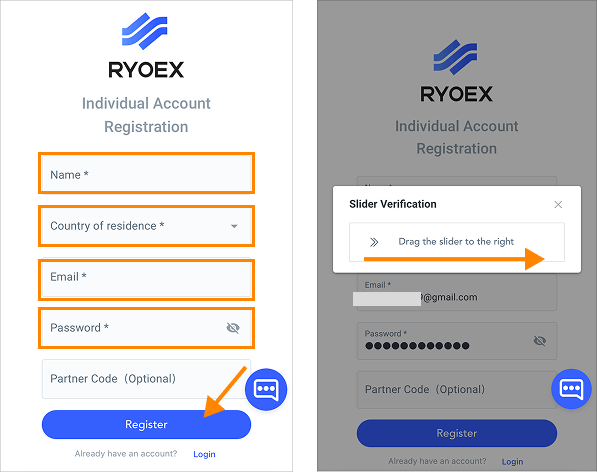
On the registration screen, enter your name, country of residence, email address, password, and other required details, then click “Register” to proceed.
A slide verification screen will appear. Drag the slider to the right, and a 6-digit verification code will be sent to your registered email address.
※ If you do not receive the email, please ensure your registered email address is correct and check your spam folder.
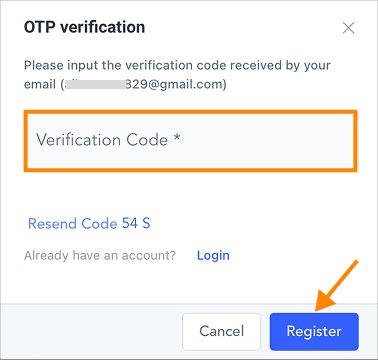
Step 3. Enter the Verification Code to Complete Your Account Setup
Enter the six-digit verification code sent to your email and click “Register” to complete your RYOEX account setup.
You will then be automatically redirected to My RYOEX (the client portal).
2.Open a demo trading account
RYOEX is fully optimized for cTrader, allowing you to trade securely on this platform. Follow the steps below to open your cTrader demo account.
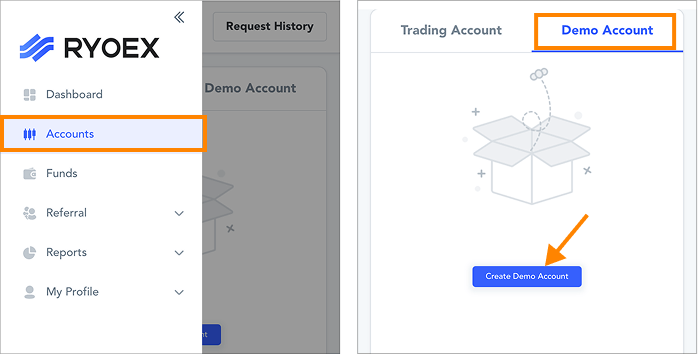
Step 4.Open the Account Setup Page
From the My RYOEX menu, select “My Account” → “Open Demo Account.”
Step 5. Configure Account Details
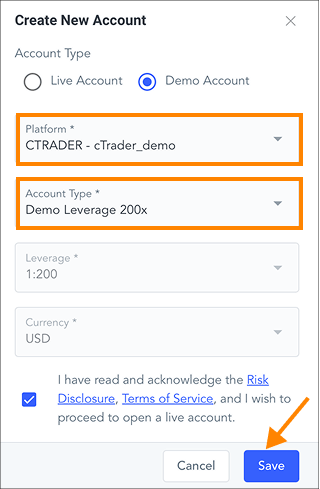
① Select “CTRADER—cTrader_demo” as the platform.
② Choose one of the five account types.
For demo accounts, only leverage can be selected (100× to 2000×).
③ Check the Risk Disclosure and Terms of Use at the bottom of the page.
Once all settings are complete, click “Save” to open your demo account.
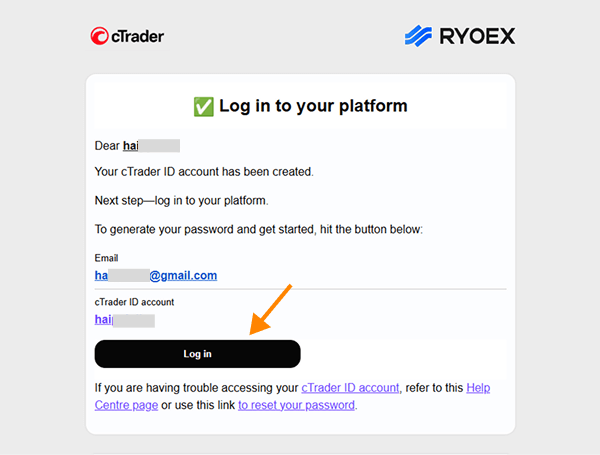
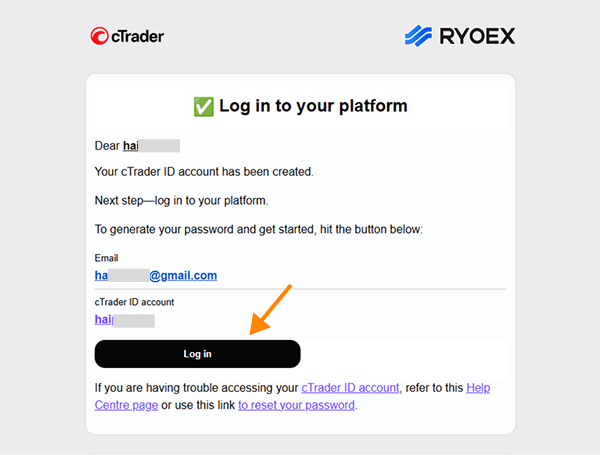
After opening the account, a cTrader ID setup notification email will be sent to your registered email address.
※ If you don’t receive the email, please check your spam folder as well.
【▼cTrader ID setup notification email】
3. 【Important】Complete your cTrader ID setup
If you are opening a cTrader account for the first time, you’ll need to set up your cTrader ID beforehand.
If you don’t set up your cTrader ID, you won’t be able to trade on cTrader.
Once your cTrader ID is created, you won’t need to set it up again when opening additional accounts. A single cTrader ID lets you manage all your trading accounts.
Step 6. Open the cTrader ID Setup Page
Click the “Log In” button in the cTrader ID setup email to proceed to the password creation page.
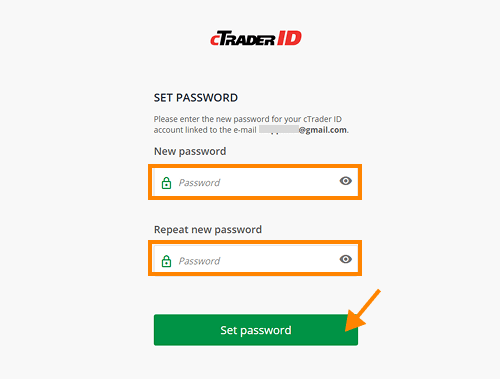
Step 7. Set Your cTrader ID Password
Enter your cTrader ID password and click “Set Password” to complete the setup.
Once done, you can log in to cTrader using your registered email address and the newly created password to start trading.
[Solution] Fixing Issues with cTrader ID & MyRYOEX Account Setup
1. If You Do Not Receive the cTrader ID Setup Email
Normally, once you open a cTrader trading account in My RYOEX, an email from cTrader with instructions to set up your cTrader ID is sent immediately.
If you do not receive the email after some time—and it is not in your spam folder—please proceed to set up your cTrader ID directly from the cTrader website.
Note:
This method is only valid when you do not receive the email.
If the email was actually sent (e.g., filtered into Spam or Promotions), this method will not work. Please check all email folders again before proceeding.
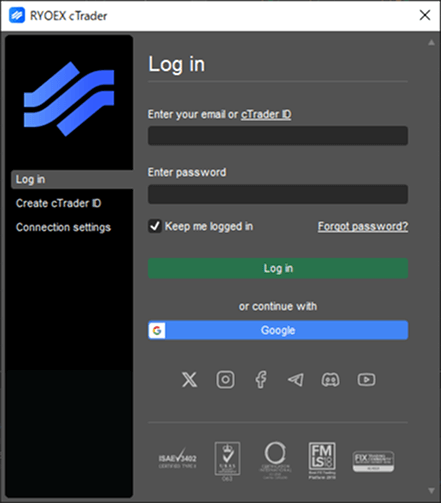
Step 1: Open cTrader and Display the Login Screen
cTrader is available on desktop, mobile, and web. If you are accessing it for the first time, the login screen will appear immediately upon launch.
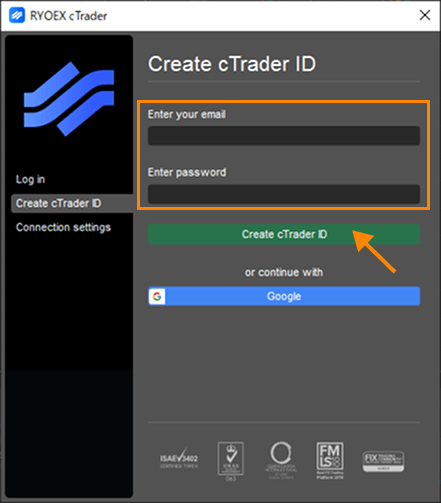
Step 2. Set Up Your cTrader ID
On the login screen, select “Create cTrader ID,” then enter your registered email address and a password. Click “Create cTrader ID” to complete the setup.
Once completed, your trading account will be automatically linked to your cTrader ID, allowing you to start trading on cTrader.
2. If You Deleted the cTrader ID Setup Email
If you accidentally deleted the cTrader ID setup email, mistaking it for spam, you can still complete the setup without any issues.
resetting your cTrader ID password, you can reconfigure your cTrader ID and proceed normally.
Step 1. Request a Password Reset Email
Open the page below, enter your registered email address, and click “Reset Password.” A password reset email will be sent to your registered email inbox.
https://id-app.ryoex.com/reset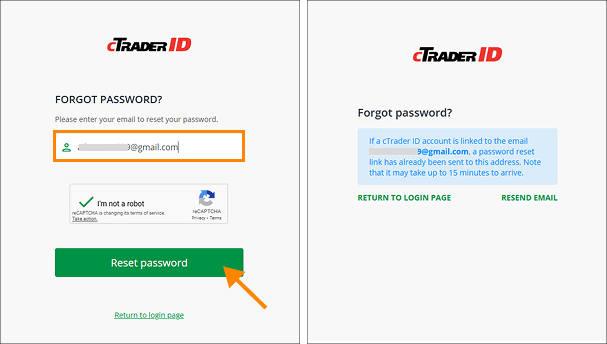
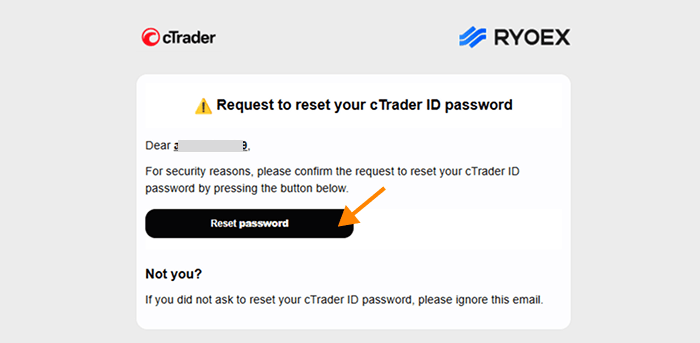
Step 2. Open the Password Reset Page from the Email
Click the “Reset Password” button in the email you received.
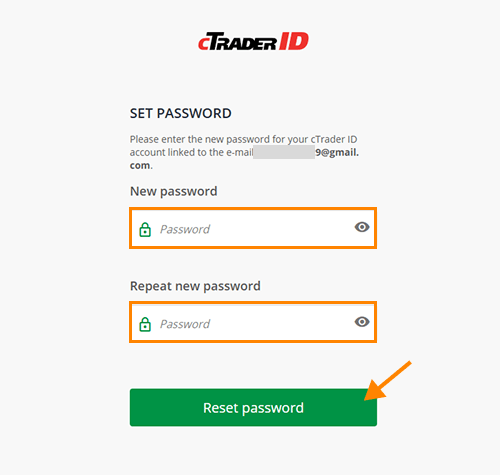
Step 3. Set Your cTrader ID Password
Enter a new password on the displayed screen and click “Reset Password” to complete your cTrader ID setup. Once updated, you can log in to cTrader with your cTrader ID and begin trading.
3. If You Forget Your cTrader ID Password
If you have forgotten your cTrader ID password, simply reset it to regain access.
Step 1. Request a Password Reset Email
Open the page below, enter your registered email address, and click “Reset Password.” A password reset email will be sent to your registered address.
https://id-app.ryoex.com/reset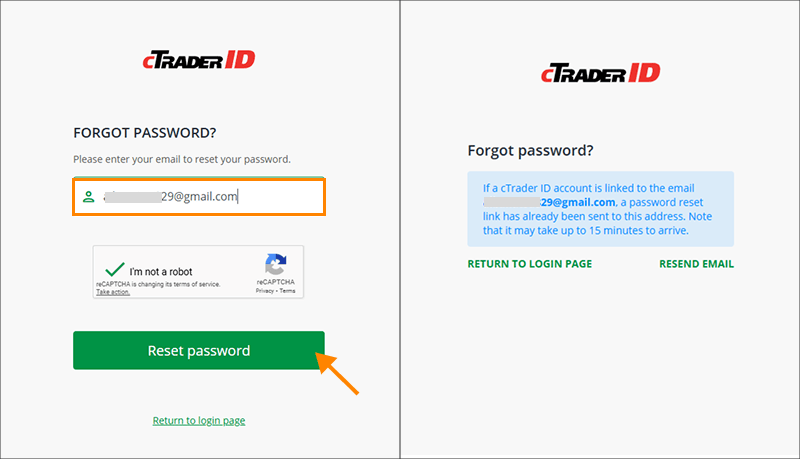
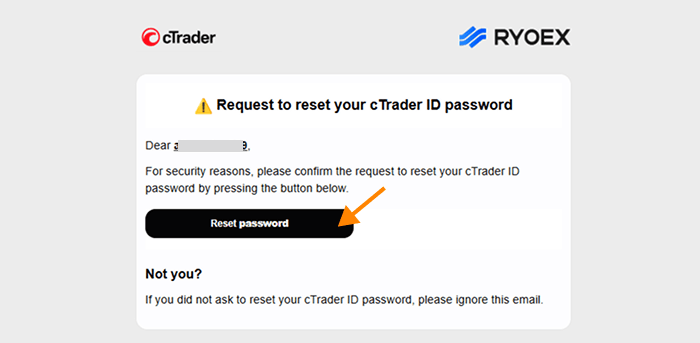
Step 2. Open the Password Reset Page from the Email
Click the “Reset Password” button in the email you received.
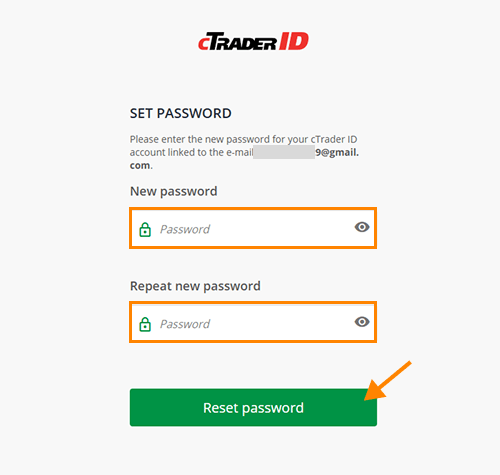
Step 3. Set a New Password
Enter your new password on the screen and click "Reset Password" to complete the process.
4. If You Forget Your My RYOEX Account Password
Please reset your password if you have forgotten it.
Step 1. Receive the Password Reset Email
Open the page below, enter your registered email address, and click “Reset Password.” A password reset email will be sent to your registered inbox.
https://my.ryoex.com/forgot-password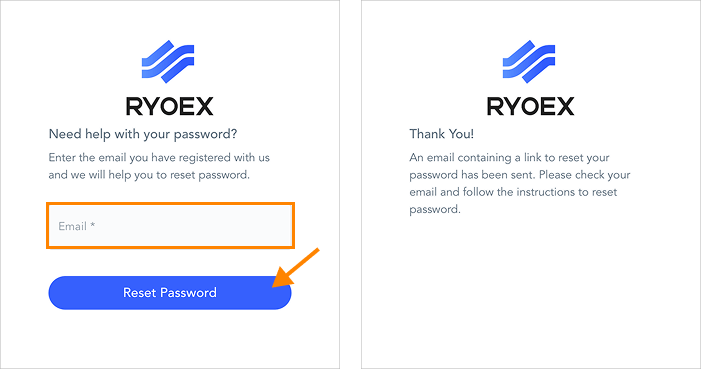
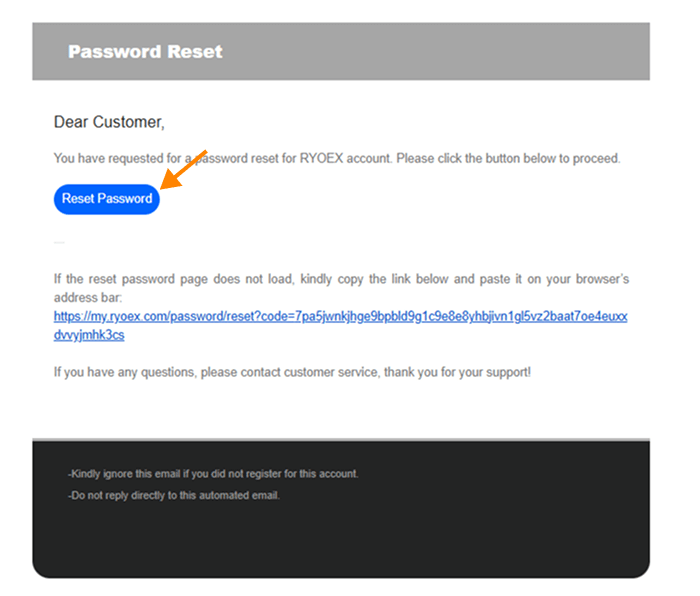
Step 2. Open the Password Reset Page from the Email
Click the “Reset Password” button in the email to open the password reset page.
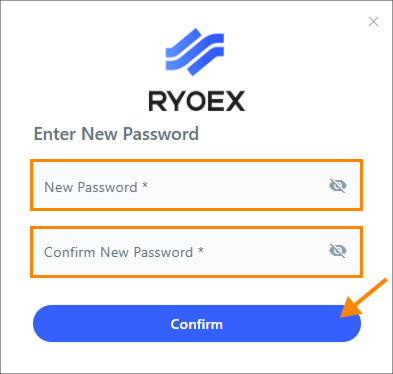
Step 3. Set a New Password
Enter your new password on the screen and click "Reset Password" to complete the process.
Frequently Asked Questions About Account Opening
The only difference lies in the KYC (identity verification) process. All other procedures and conditions are the same.
Yes. All procedures can be completed entirely online.
Yes. For real accounts, RYOEX offers the following five types of trading accounts.
The same account types are available for both individual and corporate accounts.
・Basic Account
・Standard Account
・Edge Account
・Low Spread Account
・Onyx Account
Account Comparison” page for details and comparisons of each account type.
No, a deposit is not required to open a live account. However, you will need to make a deposit before you can start trading.
No. Minors cannot open an account. You must be at least 18 years old, or have reached the legal age of majority in your country of residence, to open an account.
My RYOEX is your personal dashboard where you can manage your RYOEX trading accounts and funds in one place.
You can view account details, manage deposits and withdrawals, and check your trading history.
A cTrader ID is the account ID used to access and trade on the cTrader platform.
It is separate from your My RYOEX account and is used for logging in to cTrader and managing your trading accounts.
With a single cTrader ID, you can manage multiple cTrader trading accounts in one place.
Your My RYOEX account and cTrader ID are managed using the same email address.
While you can set the same password for both, we recommend using separate passwords for security purposes.
Enjoyed this article? Share it with your network!


RYOEX Official Media is an information platform created specifically for traders, offering the latest news, analysis, guides, and more. From beginners to experienced traders, we provide useful content to help you stay informed and succeed in your trading endeavors.


